
How to
How to make a First and Then board
Two big pictures: what is happening now, and what comes after it. It takes about a minute to make.
1 · Fill in the two frames
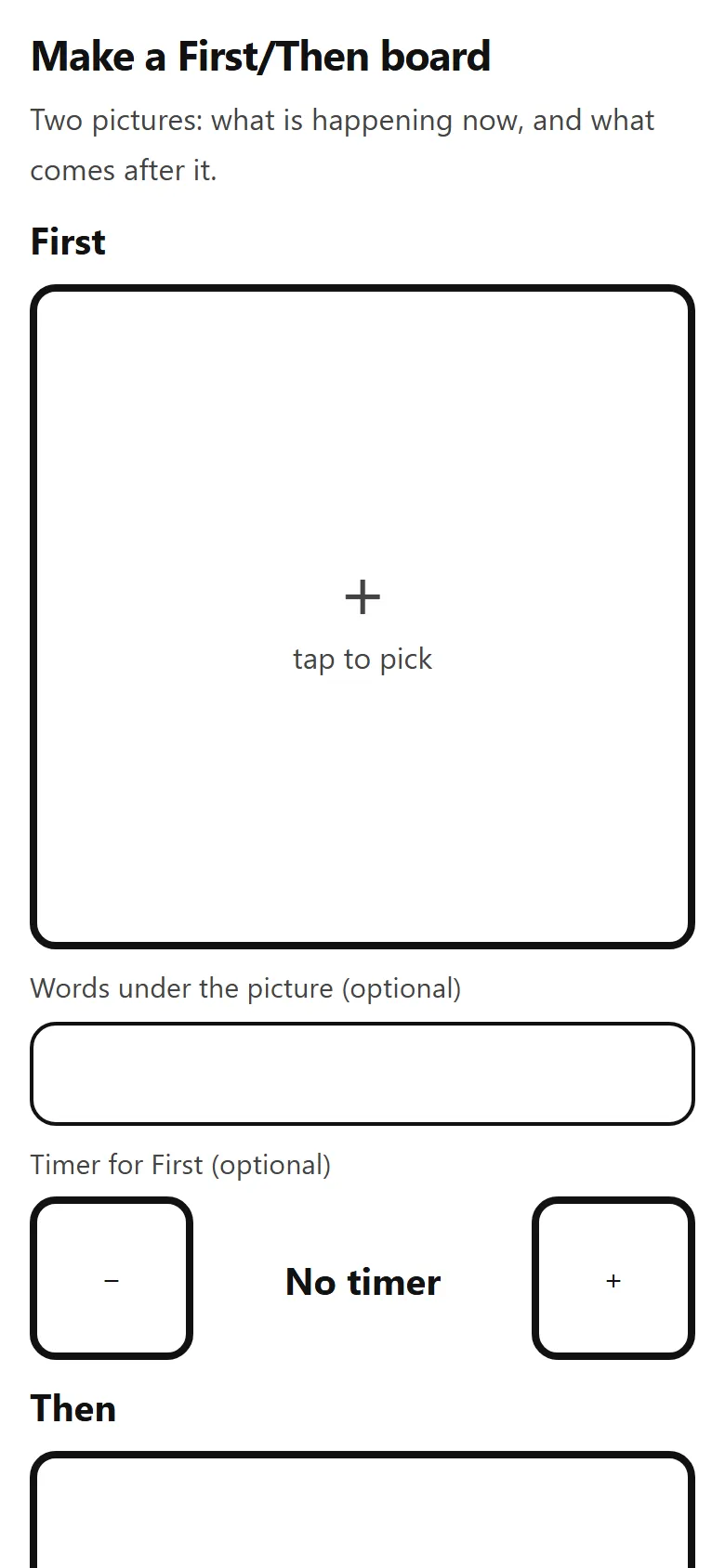
- Open the board maker. There are two empty frames, headed First and Then.
- Tap a frame to pick a picture for it.
- Under each frame there is a Words under the picture box. It fills in by itself when you pick a picture, and you can type over it.
- Timer for First is optional. Leave it on “No timer” unless you want a countdown on that step.
2 · Choose a picture
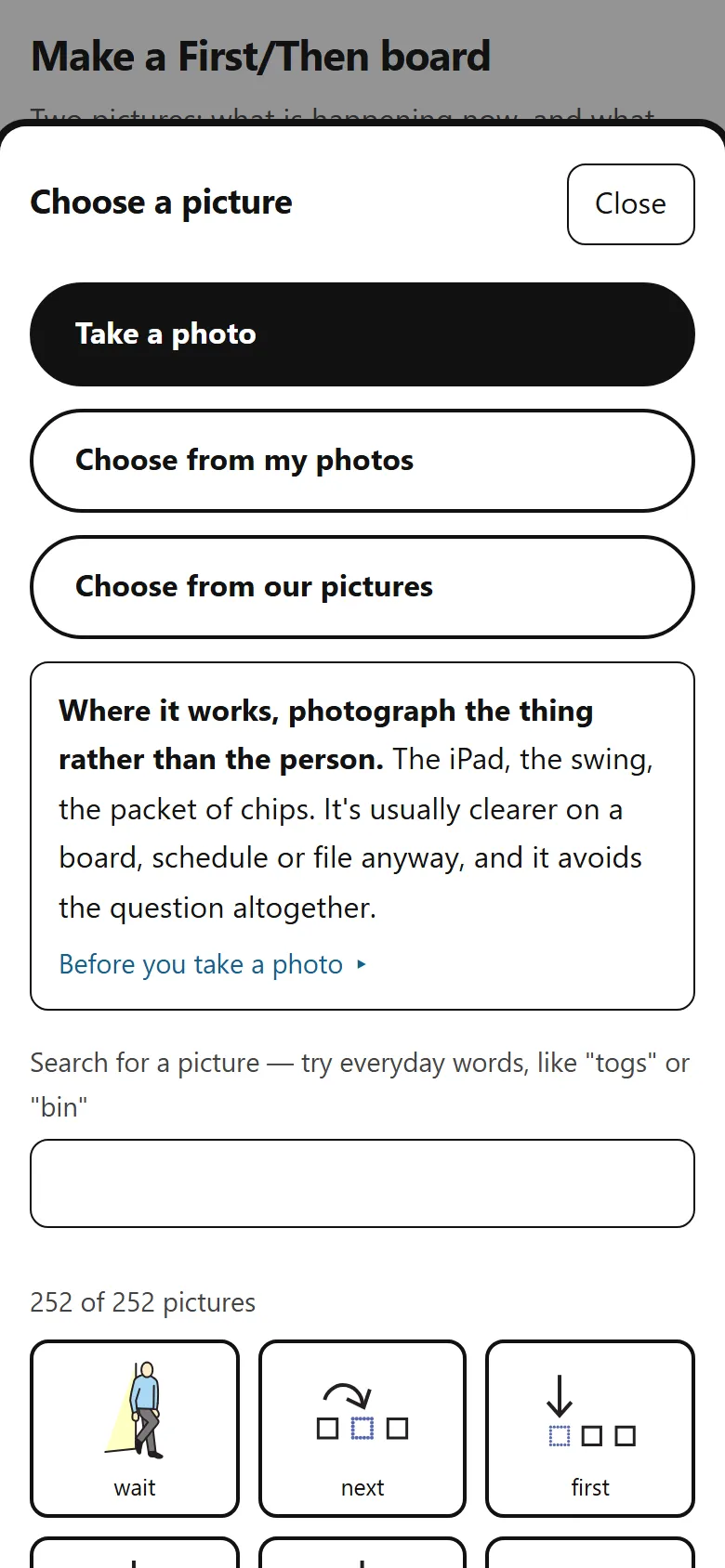
Tapping a frame opens the chooser. There are three ways to get a picture:
- Take a photo — opens the camera. A photo of the actual thing, in the actual room, is often clearer than a drawing of one.
- Choose from my photos — a photo you already have.
- Choose from our pictures — jumps down to the picture symbols, where you can search in everyday words like “togs” or “bin”.
3 · Show the board
Tap Next. The first time, you will be asked to read a short note about what belongs in “Then” — you can carry on either way, and the note stays under the board if you do not tick it.
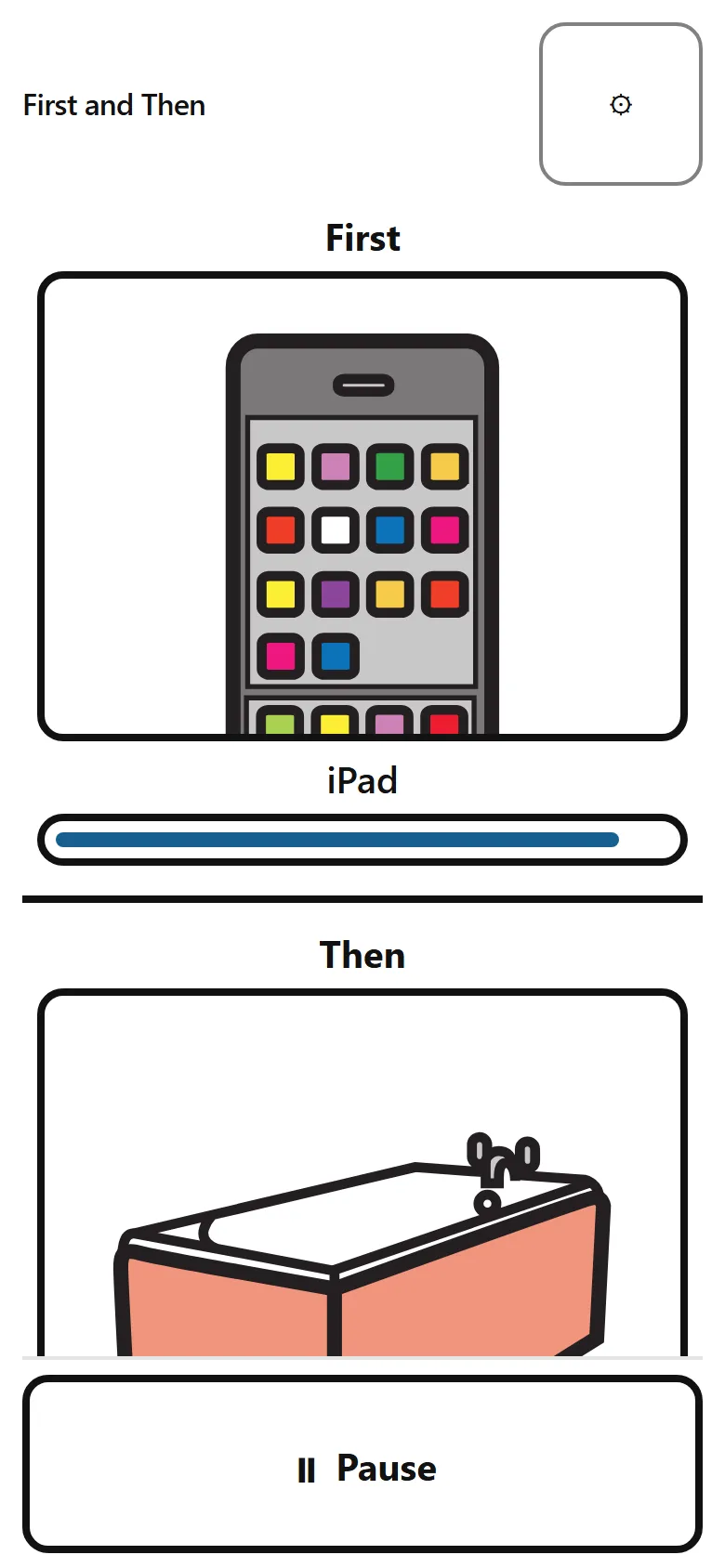
The board itself is the screen you show the person. It is deliberately plain: two cards, a heavy line between them, and nothing to tap by accident.
4 · Changing it, or getting back out
Press and hold the ⚙ for about half a second — a tap will not open it. That keeps a child leaning on the screen out of the settings. The button fills up while you hold it.
If holding is difficult, a keyboard or a screen reader opens the settings on an ordinary press, with no hold at all.
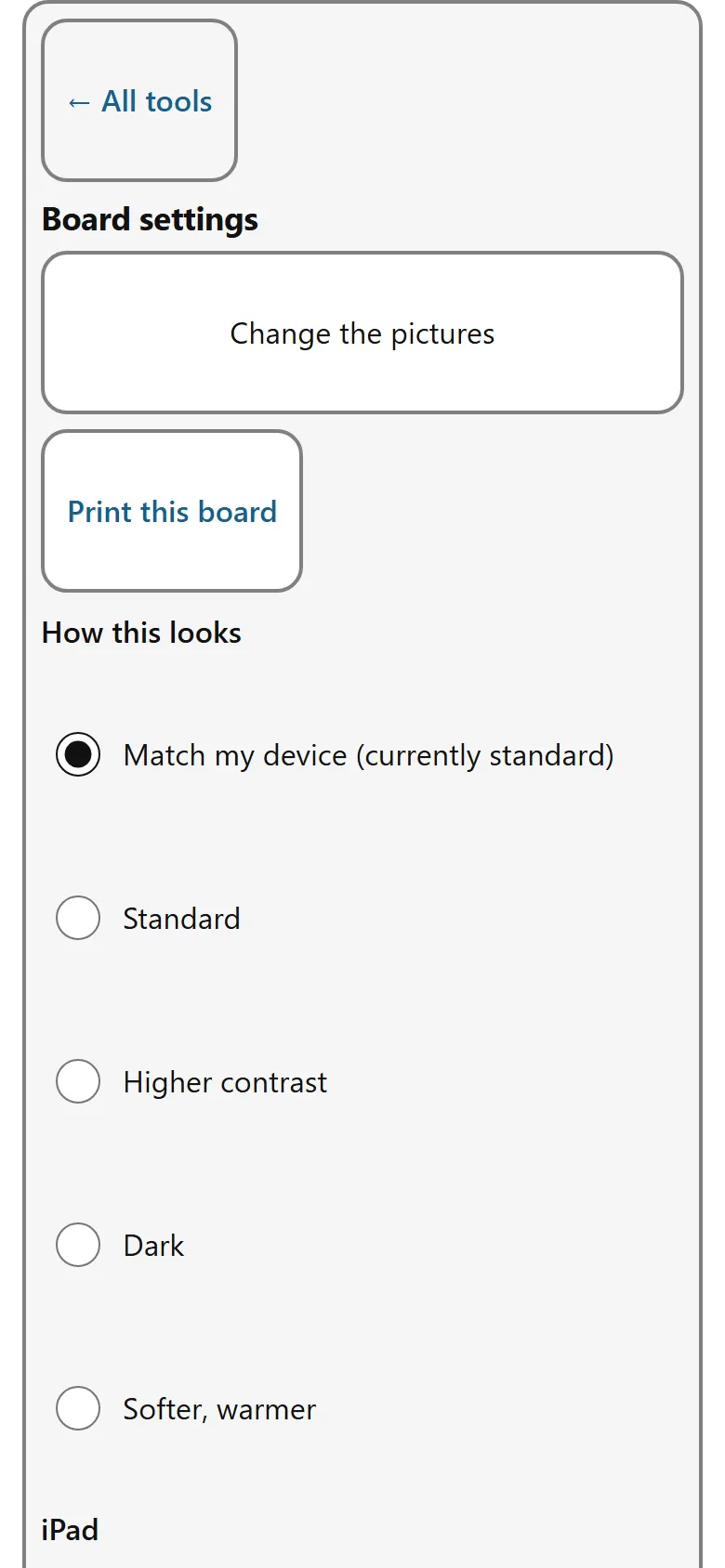
- ← All tools — back to the other tools.
- Change the pictures — back to the board maker.
- Print this board — cut-out cards and a paper version.
- How this looks — Match my device, Standard, Higher contrast, Dark, or Softer, warmer. It starts on Match my device.
- Pause, restart, or start a step’s timer, if you gave a step one.
Things that are easy to miss
- If you set a timer on “First”, the “Then” timer starts by itself when the first one ends. If the person is not ready, there is a Pause button under the two cards.
- “Then” is never hidden or greyed out. Both pictures are on screen the whole time, on purpose — nothing has to be finished first.
- It saves as you go. There is no save button and nothing to lose.