
How to
How to print the cards and the board
Four A4 pages: three of cut-out cards at about 70 mm, and a First and Then board for the fridge. No phone or tablet is needed for any of it.
Printing blank cards to write on
- Open the print pack.
- Everything is already ticked. You get a page of blank cards, then change cards, all-done cards, and a set of everyday ones — wait, toilet, drink, break, eat, help, more and home.
- Tap Print these sheets.
- In the print box, choose A4 and set the scale to 100% — not “fit to page” — so the cards come out the right size. Turning off “Headers and footers” keeps the web address off the paper.
Cut along the marks, fold on the dashed line, and write or draw on them.
Printing a board you have made
- From the board maker, or from the board’s ⚙ settings, tap Print this board. That prints that particular board.
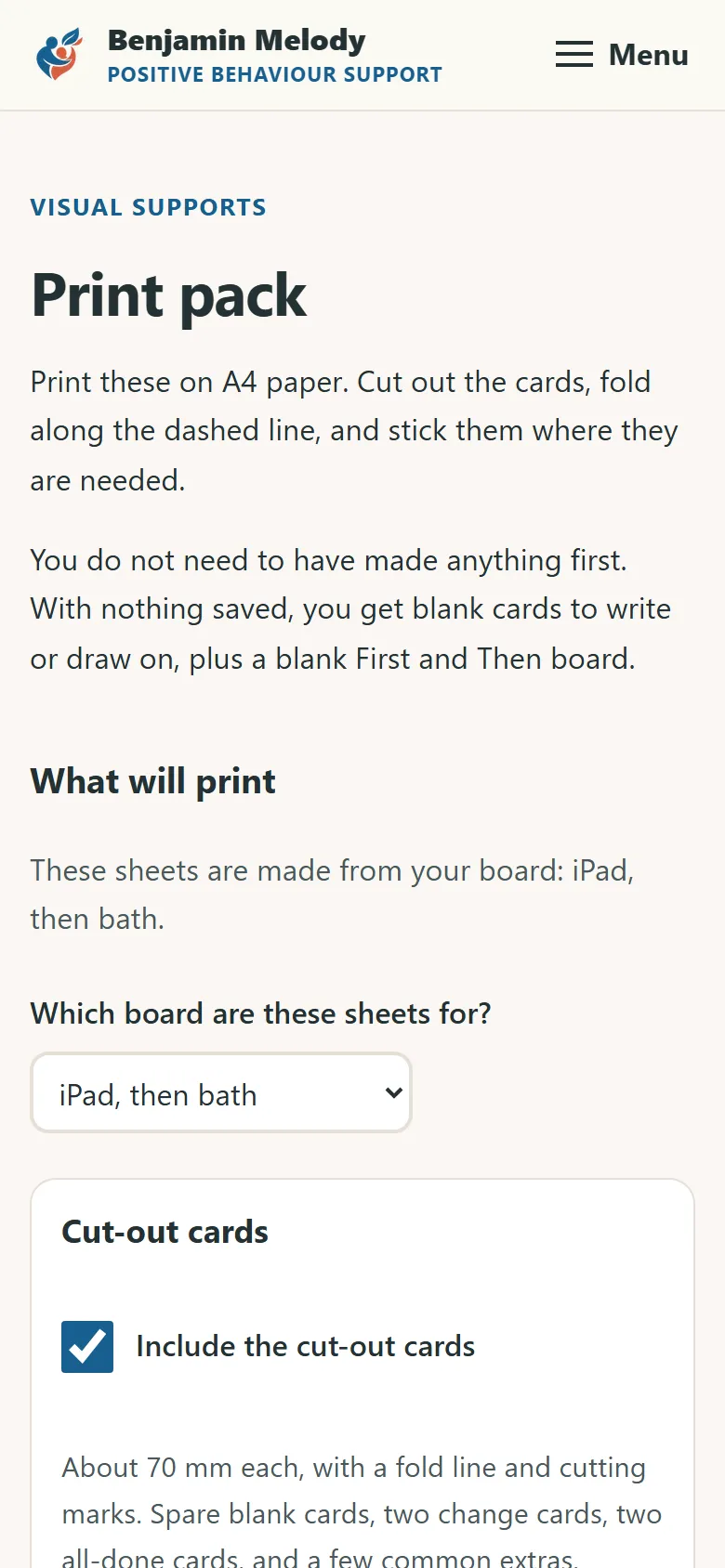
- Or open the print pack directly and use Which board are these sheets for? to choose one.
- Your two pictures come out as the first two cut-out cards, and the First and Then board comes out on its own landscape page.
Choosing Blank cards to write on in that list is a real option, not an empty one — it prints the paper-only pack described above.
Leaving a sheet out
Each sheet has an Include tick box. Untick one and it will not print. The choice lasts for that print only — everything is ticked again next time.
Things that are easy to miss
- Scale matters more than anything else here. “Fit to page” changes the card size, and 70 mm is the point of them.
- It prints fine in black and white. The cards are told apart by their border pattern, not by colour.
- Two cards of some kinds is on purpose. The change card and the all-done card are used with every board, so there are spares.
- It works with nothing saved and with no internet. If the browser cannot read anything on the device, you still get the blank pack.