
How to
How to use the visual timer
The timer shows how much time is left as a shape that empties, rather than a number counting down. There is nothing to set up first.
Start a timer
- Open the timer. You will see four buttons: 1, 2, 5 and 10 minutes.
- Tap one and it starts straight away. There is no separate start button to press afterwards.
- For a different length, tap Set my own, use the − and + buttons, then tap Start this one.
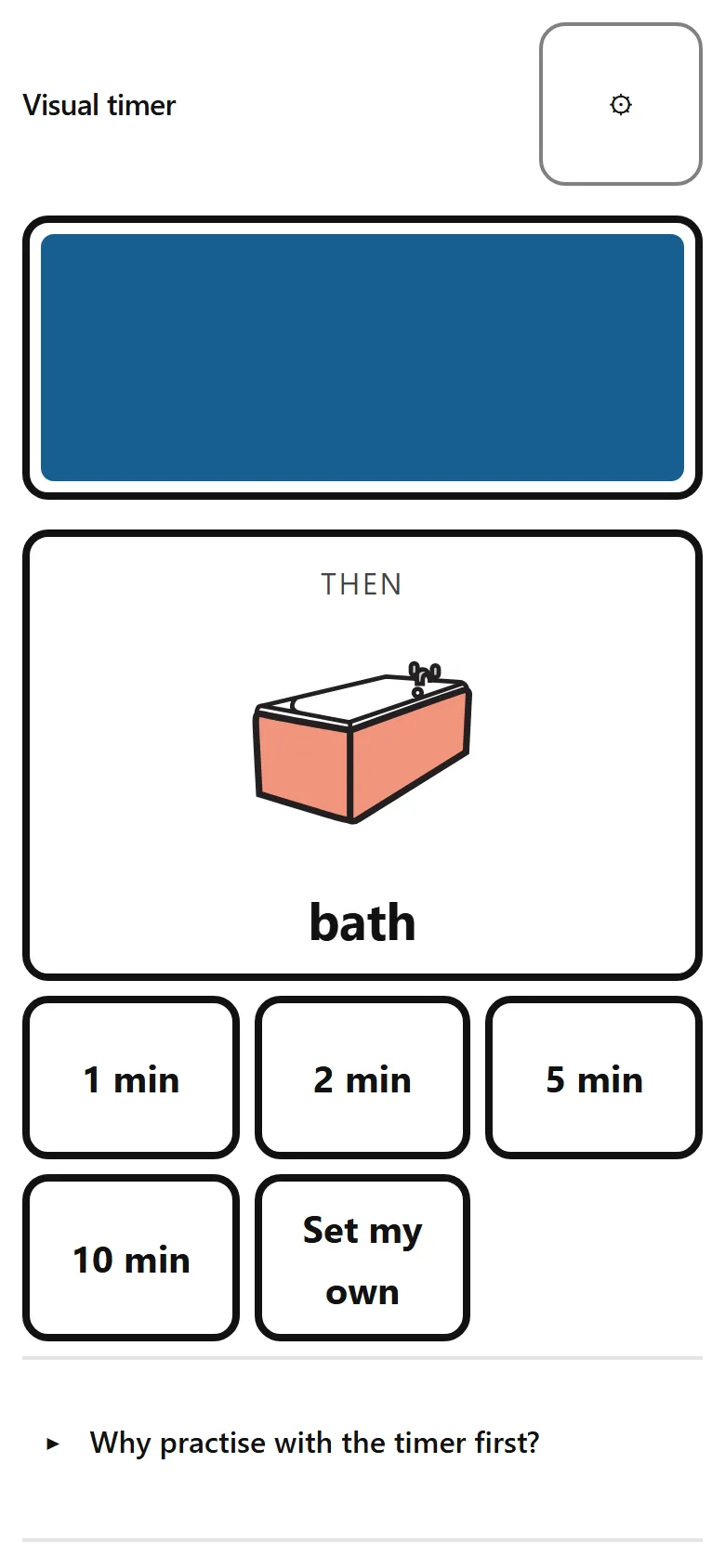
While it is running
- The shape empties as the time goes down.
- Pause holds it where it is. The same button then reads Keep going.
- Start again puts it back to the beginning.
- Tapping a different length while one is running simply starts that one instead.
Nothing happens at the end except the shape changing, a tick, and the word finished. It does not close anything or take anything away.
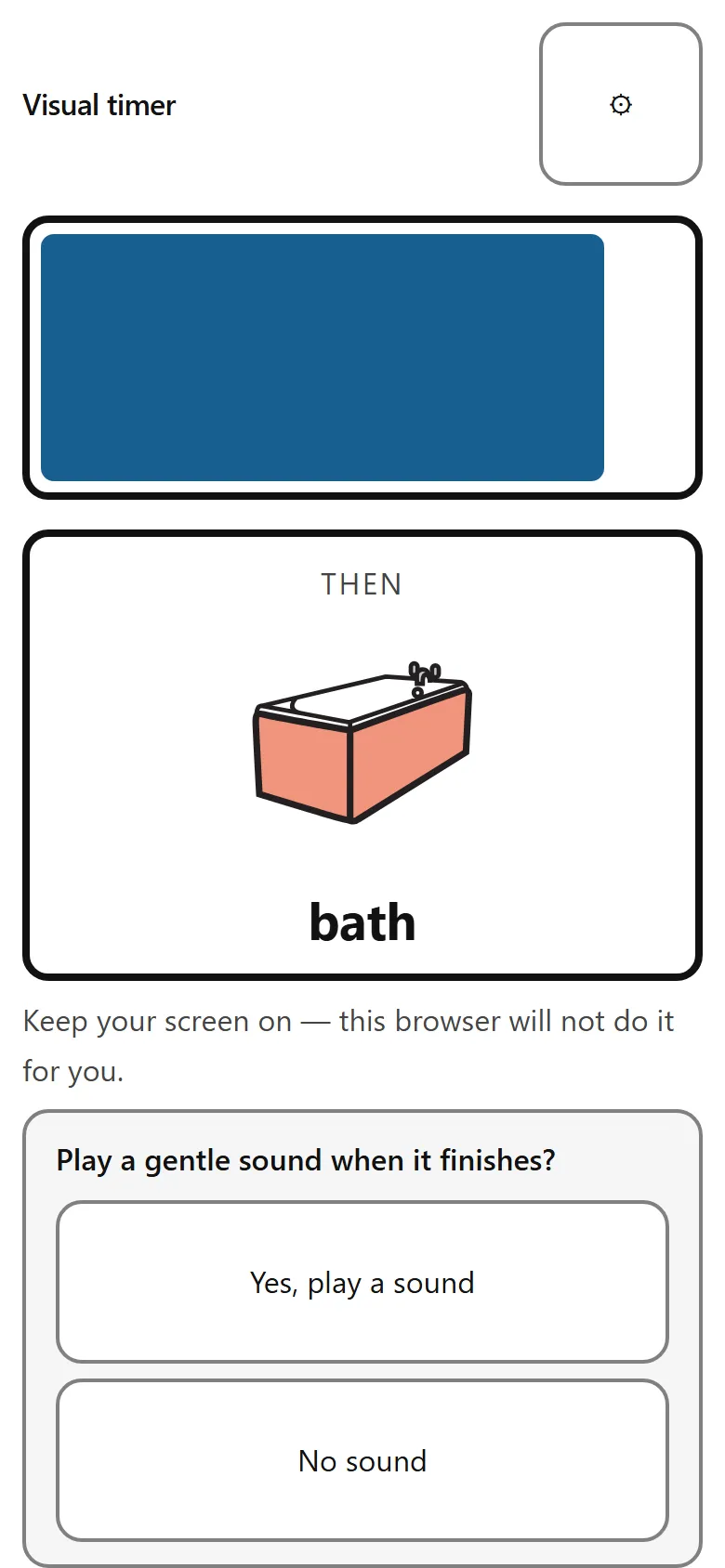
Settings — press and hold the ⚙
The settings button needs a press and hold of about half a second, not a tap. That is deliberate: it keeps a child leaning on the screen out of the settings. The button fills up while you hold it so you can see it working.
If holding is difficult, Set my own opens the same panel on an ordinary tap, and so does a keyboard or a screen reader.
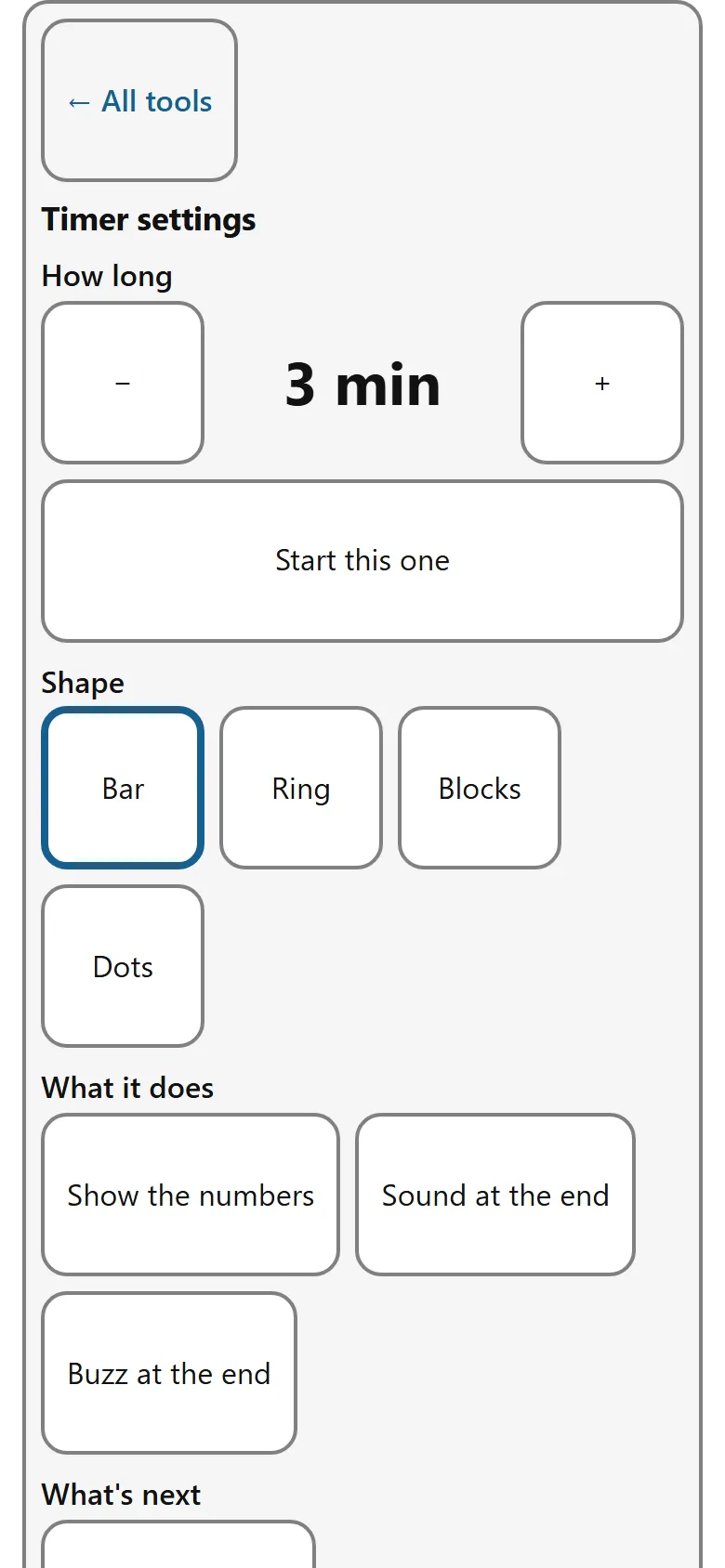
What is in there
- How long — the length behind “Set my own”.
- Shape — Bar, Ring, Blocks or Dots. Blocks and Dots go down one piece at a time, which is easier to count.
- What it does — show the numbers, a sound at the end, and a buzz at the end on devices that can buzz.
- What’s next — a picture and a word for what comes after. See below.
- How this looks — Match my device, Standard, Higher contrast, Dark, or Softer, warmer. It starts on Match my device, and whichever you pick is remembered for the whole device.
- ← All tools — the way back out.
Showing what comes next
The card under the shape says what happens after the timer — “2 minutes, then bath”. There are two ways to fill it:
- If you have made a First and Then board on this device, its “Then” appears here on its own. You do not have to do anything.
- Or hold the ⚙, go to What’s next, and tap Choose a picture.
Anything you set here belongs to the timer, and stays put if you change your board later.
Things that are easy to miss
- The screen may go to sleep. On some browsers the timer cannot keep it awake. When that is the case it says so on the screen.
- The sound cannot always be relied on. On an iPhone the silent switch can stop it. That is why the end is always a shape change and a tick as well.
- Esc on a keyboard does one thing at a time. With the settings open it closes them and leaves the timer alone. With the settings shut it puts the timer back to the start.